


How to Nest Multiple IF Functions in Excel
.svg)

Multiple IF Statements in Excel: Quick Example
To return more than two possible results with IF, place another IF function inside the first one. This is known as a nested IF.
=IF(A2>=90,"A",IF(A2>=80,"B",IF(A2>=70,"C","Below C")))
Excel checks the conditions from left to right and returns the result for the first condition that is TRUE.
Introduction
A single Excel IF function is ideal when you have two possible outcomes. When you need several outcomes, you can use multiple IF statements by nesting one IF inside another.
This guide focuses specifically on nested IF formulas and multiple conditions. If you are new to IF, start with our general guide to IF statements in Excel.
Here you’ll learn how to plan nested logic, build formulas step by step, combine IF with AND and OR, work with dates and text, troubleshoot long formulas, and decide when IFS or a lookup table is a better choice.
What Is a Nested IF Function?
A nested IF means using one IF function as the value returned by another IF. Each additional IF lets you test another condition.
Example:
=IF(A1>=90,"Excellent",IF(A1>=75,"Good",IF(A1>=50,"Pass","Fail")))
Excel evaluates the conditions in order:
- If A1 is 90 or above, return “Excellent”.
- Otherwise, if A1 is 75 or above, return “Good”.
- Otherwise, if A1 is 50 or above, return “Pass”.
- If none are true, return “Fail”.
Step 1: Plan Your Logic Before Writing the Formula
Write down the outcomes and thresholds first. For example, a grading model might use:
- 90 or above = A
- 80 to 89 = B
- 70 to 79 = C
- 60 to 69 = D
- Below 60 = F
Because the tests are evaluated in order, start with the highest threshold and work downwards.
Step 2: Write the First IF
=IF(A2>=90,"A",...)
If A2 is 90 or above, Excel returns “A”. If not, Excel moves to the next IF.
Step 3: Add the Second IF
=IF(A2>=90,"A",IF(A2>=80,"B",...))
Excel now checks for an A first, then a B.
Step 4: Add the Remaining Conditions
=IF(A2>=90,"A",IF(A2>=80,"B",IF(A2>=70,"C",IF(A2>=60,"D","F"))))
The order matters. A score of 85 fails the first test, passes the second, and returns “B” without checking the remaining conditions.
Modern Excel allows up to 64 levels of nested functions, but formulas with many nested IFs become difficult to test and maintain. In practice, consider an alternative long before reaching that limit.
Step 5: Test Boundary Values
Do not test only obvious examples. If a boundary is 80, check values such as 79, 80 and 81. This helps catch errors involving > versus >=.
Step 6: Use Multiple IF Statements with Text or Numbers
Sales Performance Example
=IF(B2>10000,"Excellent",IF(B2>7000,"Good",IF(B2>4000,"Average","Needs Improvement")))
The same nested IF structure works with text checks, numbers, dates and calculations.
Step 7: Combine IF with AND or OR
Use AND when all conditions must be true:
=IF(AND(A2>=50,B2>=50),"Pass","Fail")
Use OR when any one of several conditions can be true:
=IF(OR(A2>=50,B2>=50),"Pass","Fail")
AND and OR can also be used inside larger nested IF formulas when a particular outcome depends on several tests.
Step 8: Return Text, Numbers or Calculations
An IF result does not have to be a word. It can return a number, formula or combined text.
=IF(A2>1000,"High ("&A2&")","Low ("&A2&")")
If A2 is 1200, the result is “High (1200)”.
Step 9: Use Nested IF with Dates
Excel stores dates as serial numbers, so they can be compared in IF formulas:
=IF(A2<TODAY(),"Expired",IF(A2=TODAY(),"Expires Today","Active"))
This type of formula is useful for deadlines, renewals and expiry dates.
Step 10: Troubleshoot Nested IF Errors
Common problems include missing parentheses, conditions in the wrong order, missing quotation marks around text, and overlapping thresholds.
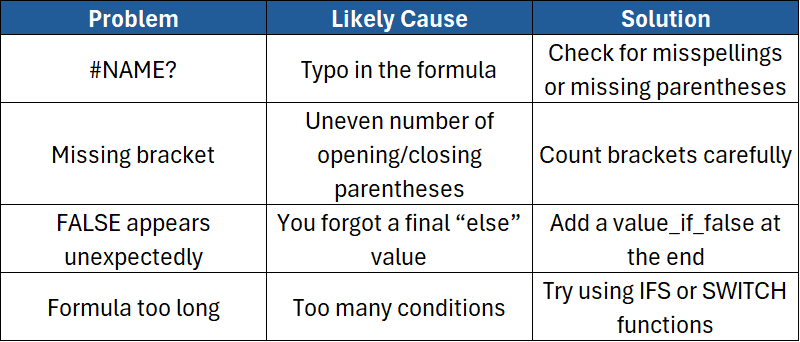
Tip: In the Formula Bar, use Alt + Enter to put sections of a long formula on separate lines. Excel also colour-codes matching parentheses while you edit a formula.
Step 11: Use IFS as a Simpler Alternative
In Excel 2019 and later, including Microsoft 365, the IFS function can replace many nested IF formulas.
=IFS(A2>=90,"A",A2>=80,"B",A2>=70,"C",A2>=60,"D",TRUE,"F")
IFS checks each condition in order and returns the value associated with the first TRUE condition. Microsoft supports up to 127 condition/result pairs in IFS, although a lookup table is often easier to maintain when rules become extensive.
Step 12: Combine IF with Other Functions
IF + ISBLANK
Return a blank result when no value has been entered:
=IF(ISBLANK(A2),"",IF(A2>=50,"Pass","Fail"))
IF + TEXT
Format a number inside a text result:
=IF(B2>1000,"Target met ("&TEXT(B2,"£#,##0")&")","Below target")
Use a Lookup Table Instead of Many IFs
When the formula simply maps numeric bands to categories, a lookup table can be easier to audit and update than a long nested IF. Depending on your Excel version and model, XLOOKUP, VLOOKUP or another lookup approach may be suitable.
Step 13: Real-World Multiple IF Examples
Employee Bonus Levels
=IF(C2>=100000,"Gold",IF(C2>=75000,"Silver",IF(C2>=50000,"Bronze","No Bonus")))
Delivery Status
=IF(D2="Yes","Delivered",IF(E2="Yes","In Transit","Pending"))
Cost Category
=IF(B2<100,"Low",IF(B2<=500,"Medium",IF(B2<=1000,"High","Very High")))
Step 14: When Should You Stop Nesting IFs?
Nested IFs are useful, but long formulas can become hard to read, test and update. Consider another method when:
- the number of conditions keeps growing;
- business rules or thresholds change regularly;
- several people need to maintain the workbook;
- a lookup table would represent the rules more clearly; or
- IFS or SWITCH would express the logic more simply.
Step 15: Best Practices for Multiple IF Statements
- Put conditions in a deliberate order.
- Test each condition separately before combining them.
- Check boundary values around every threshold.
- Break long formulas across lines for readability.
- Use cell references for thresholds when business rules change frequently.
- Prefer a lookup table or IFS when it makes the logic easier to understand.
Conclusion
Multiple IF statements let Excel return several possible outcomes from one formula. The key is to plan the logic first, put conditions in the correct order, and test the boundary values carefully.
If you only need a basic TRUE/FALSE decision, our IF Statement in Excel guide covers the fundamentals. Use nested IF when several outcomes genuinely belong in one formula, and consider IFS or a lookup table when the logic becomes difficult to maintain.
Want to Build Stronger Excel Logic?
Our Excel Advanced course covers IF, AND, OR and IFERROR and provides the logical-function foundation for more complex formulas.
Our Excel Advanced Functions & Data Modelling course goes further with IFS and other advanced functions for more sophisticated analysis.
Not sure which level is right for you? Take our free Excel Skills Assessment, or compare the full Excel training pathway.
Want to build stronger Excel logic? Start with our Excel Advanced course, then progress to Advanced Functions & Data Modelling for IFS and more advanced analysis.
Need a quick explanation of a Power BI term, feature or concept?
Browse our free Power BI GlossaryFound this guide useful? Add ExperTrain as a Preferred Source on Google to help surface more of our training guides, articles and learning resources.


.png)
