


How to Use INDEX and MATCH in Excel
.svg)
Introduction
If you’ve used VLOOKUP and hit problems (like not being able to look left or your columns breaking when you insert a new one), it’s time to learn INDEX + MATCH. This pair of functions is more flexible, more reliable, and works with both vertical and horizontal lookups. With a few simple examples, you’ll be able to fetch the exact value you need from any table without rearranging your data.
In this guide you’ll learn:
- What INDEX and MATCH do, and why they work so well together
- How to build vertical, horizontal, and two-way lookups
- How to do left lookups (which VLOOKUP can’t do)
- How to match exact, approximate, wildcard, and multiple criteria
- How to add error handling and data validation for clean results
- Power tips: structured references, dynamic ranges, duplicate handling, and performance
We’ll use plain language and step-by-step examples so you can follow along in any modern version of Excel (Microsoft 365 or standalone).
What INDEX and MATCH do (in one minute)
- INDEX(array, row_num, [column_num]) returns the value at a specific row and column inside a range.
Think of INDEX as “give me the value at coordinates (row, column).” - MATCH(lookup_value, lookup_array, [match_type]) returns the position of a value within a range.
Think of MATCH as “tell me the row (or column) number where this thing is.”
Together:
- Use MATCH to find which row/column contains your key.
- Feed that position into INDEX to return the value from the table.
Quick example: a vertical lookup with INDEX + MATCH
Imagine a simple price list:

You want the Price for product code in F2.
Formula (in G2):
=INDEX(C:C, MATCH(F2, A:A, 0))
MATCH(F2, A:A, 0)finds the row of the code in column A (0 = exact match).INDEX(C:C, …)returns the value from column C at that row.
This is the classic “look left” win: your lookup column (A) is left of the return column (C). VLOOKUP struggles here; INDEX + MATCH handles it easily.
Syntax notes you’ll use often
MATCH(..., 0)= exact match (most common for IDs/text).MATCH(..., 1)= approximate (lookup array must be sorted ascending).MATCH(..., -1)= approximate descending (array sorted descending).INDEX(range, row, column)– if you give INDEX a single column, you only need the row. If you give a whole table, you can supply both row and column.
Two-way lookup (row by one field, column by another)
Say you have a small sales table:

- Product name in G2 (e.g., “Keyboard”)
- Month in H2 (e.g., “Feb”)
Formula (in I2):
=INDEX(B2:D4, MATCH(G2, A2:A4, 0), MATCH(H2, B1:D1, 0))
- The first MATCH finds the row for the product.
- The second MATCH finds the column for the month.
- INDEX returns the cell at that row and column.
Horizontal lookup (MATCH across columns)
If your headers run across the top and you want a figure from a single row, switch the roles:
=INDEX(2:2, MATCH("Mar", 1:1, 0))
- Finds the column of “Mar” in row 1, then returns the corresponding value from row 2.
Handle missing values nicely with IFERROR
If the lookup value doesn’t exist, MATCH returns #N/A. Wrap your formula with IFERROR for user-friendly messages:
=IFERROR(INDEX(C:C, MATCH(F2, A:A, 0)), "Not found")
For dashboards, you might return a blank:
=IFERROR(INDEX(C:C, MATCH(F2, A:A, 0)), "")
Wildcard lookups (contains / starts with)
You can search partial text with * (any characters) and ? (single character).
Example: find product containing the word in F2:
=INDEX(C:C, MATCH("*" & F2 & "*", B:B, 0))
- If F2 = "board", MATCH finds “Keyboard” in column B.
Tip: If your lookup value might contain ? or * literally, escape them: replace ~? or ~*.
Multiple-criteria lookup (no helper column)
Suppose you need the Price for Product + Region. You can build a boolean array and use MATCH with it.
Columns:
- A: Product
- B: Region
- C: Price
Inputs: - F2: Product (e.g., “Keyboard”)
- G2: Region (e.g., “EMEA”)
Formula (dynamic array Excel):
=INDEX(C:C, MATCH(1, (A:A=F2)*(B:B=G2), 0))
(A:A=F2)returns a TRUE/FALSE array.(B:B=G2)returns a TRUE/FALSE array.- Multiplying them gives 1 only where both are TRUE.
- MATCH finds the position of that 1.
In older Excel, confirm array formulas with Ctrl+Shift+Enter. In Microsoft 365, just press Enter.
First match vs last match (duplicate keys)
First match is what MATCH returns by default.
To find the last match in a column (e.g., the latest transaction for an ID), you can flip the search direction:
Option A (LOOKUP trick):
=LOOKUP(2, 1/(A:A=F2), C:C)
1/(A:A=F2)creates an array of 1s (match) and #DIV/0! (no match).LOOKUP(2, …)walks to the last numeric 1 and returns the aligned value from C:C.
Option B (XMATCH if available):
=INDEX(C:C, XMATCH(F2, A:A, 0, -1))
- The 4th argument -1 searches last-to-first. (XMATCH is in newer Excel.)
Approximate lookups (bands and grades)
To return a result by band (e.g., commission rate by threshold), sort the lookup column ascending and use MATCH(…,1):
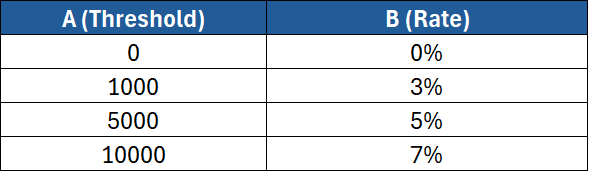
Sales value in F2 → Rate:
=INDEX(B:B, MATCH(F2, A:A, 1))
If F2 is 7,200, MATCH returns the position of 5,000 (the largest value ≤ sales), and INDEX returns 5%.
For descending bands, sort descending and use MATCH(…, -1).
Case-sensitive lookups (advanced)
MATCH ignores case. To make it case-sensitive, use EXACT inside an array:
=INDEX(C:C, MATCH(TRUE, EXACT(A:A, F2), 0))
- Confirm with Ctrl+Shift+Enter in older Excel.
- In Microsoft 365, Enter is enough.
Use named ranges and Excel Tables for safer formulas
Hard-coding whole columns works, but named ranges or Tables make formulas more robust and faster.
Named range example
Select A2:A100 (codes) → Formulas > Define Name → Codes.
Select C2:C100 (prices) → name Prices. Then:
=INDEX(Prices, MATCH(F2, Codes, 0))
Excel Table example
- Select your data → Insert > Table (tick “My table has headers”).
- Rename the table to tblProducts.
- Structured references:
=INDEX(tblProducts[Price], MATCH([@Code], tblProducts[Code], 0))
Tables auto-expand as you add rows, so your lookup keeps working.
Dynamic ranges with INDEX (no volatile OFFSET)
To define a range that grows, you can use INDEX to reference the last used row:
=Sheet1!$A$2:INDEX(Sheet1!$A:$A, COUNTA(Sheet1!$A:$A))
- This returns A2: A{last non-blank}.
- Use in Name Manager, then refer to the name in your formulas.
INDEX-based ranges are non-volatile (usually faster than OFFSET).
Debug faster with F9 and Evaluate Formula
- Highlight part of a formula (e.g., just the MATCH) and press F9 to see what it returns. Press Esc to cancel.
- Use Formulas > Evaluate Formula to step through a complex expression.
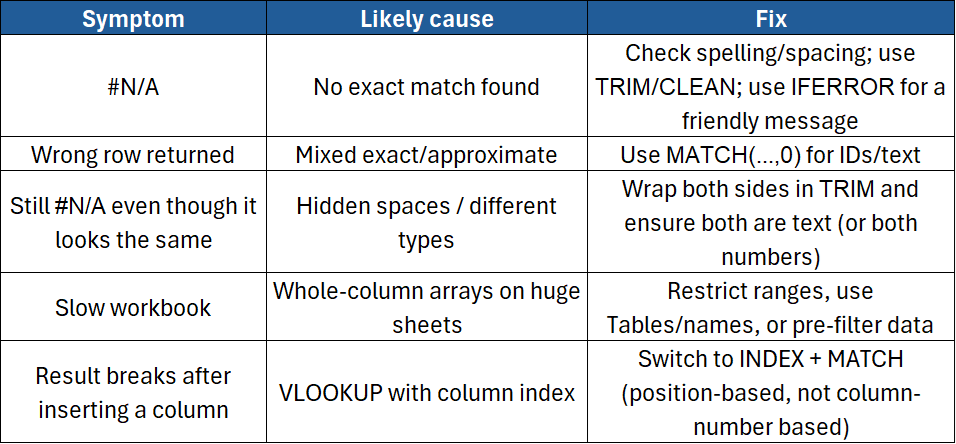
Common mistakes and how to fix them
INDEX + MATCH vs XLOOKUP (which should I use?)
If you have XLOOKUP, it combines the two functions and is simpler to read:
=XLOOKUP(F2, A:A, C:C, "Not found")
However, INDEX + MATCH is still worth learning because:
- It works on older Excel versions
- It’s very flexible for two-way and multi-criteria lookups
- It helps you understand positions vs values, which is useful in many formulas
Worked example: multi-criteria two-way lookup
Goal: Return Unit Price by Product and Region from a table.
Headers (row 1): Product | Region | Unit Price | Discount
Inputs: H2 = Product, H3 = Region
Formula (Unit Price):
=INDEX(C2:C100, MATCH(1, (A2:A100=H2)*(B2:B100=H3), 0))
Add IFERROR for user-friendly output:
=IFERROR(INDEX(C2:C100, MATCH(1, (A2:A100=H2)*(B2:B100=H3), 0)), "No match")
To turn this into a two-way lookup (e.g., choose between returning “Unit Price” or “Discount” based on a header in H4):
=INDEX(C2:D100, MATCH(1, (A2:A100=H2)*(B2:B100=H3), 0), MATCH(H4, C1:D1, 0))
Now H4 can be “Unit Price” or “Discount”, and the formula returns the correct column.
Data validation to reduce errors
Help users enter valid keys:
- Data > Data Validation
- Allow: List (point to the list of products or codes)
- Or Custom rules for patterns (e.g., codes starting with “P”)
Cleaner inputs = fewer #N/A lookups.
Performance tips
- Use Tables or limit ranges (e.g.,
A2:A5000instead ofA:A) on very large sheets. - Avoid stacking volatile functions (e.g., INDIRECT/OFFSET) in large arrays.
- Pre-compute helper columns if a single giant formula is slow.
- Consider dynamic arrays (
FILTER,UNIQUE) to pre-filter data before lookup where appropriate.
Security and sharing tips
- If lookups reference a protected sheet or external workbook, ensure recipients have permissions.
- For external links, use File > Info > Edit Links (or Data > Queries & Connections) to review connections before sharing.
Conclusion
INDEX + MATCH gives you flexible, reliable lookups that don’t break when your data changes. You can match on exact values, partial text, multiple criteria, or even the last occurrence—then return a value from any column or row. With error handling and structured references, your spreadsheets will be cleaner, faster, and easier to maintain.
Want to Learn INDEX and MATCH in Depth?
Our Excel Advanced Functions & Data Modelling course explicitly covers XLOOKUP, INDEX, MATCH, dynamic array functions and other advanced lookup techniques.
If you are not yet comfortable with advanced formulas, our Excel Advanced course is the natural preparation step, covering VLOOKUP/HLOOKUP, IFERROR, range names, data validation and other skills used before progressing to more advanced lookup formulas.
Not sure which level is right for you? Take our free Excel Skills Assessment, or compare the full Excel training pathway.
Want to learn INDEX and MATCH in depth? Our Excel Advanced Functions & Data Modelling course covers XLOOKUP, INDEX, MATCH and dynamic arrays. Or compare the full Excel training pathway.
Need a quick explanation of a Power BI term, feature or concept?
Browse our free Power BI GlossaryFound this guide useful? Add ExperTrain as a Preferred Source on Google to help surface more of our training guides, articles and learning resources.


.png)
