


How to Protect Worksheets and Workbooks in Excel
.svg)

How to Lock an Excel Spreadsheet
To lock an Excel spreadsheet, first unlock any cells people should still be able to edit, then go to Review > Protect Sheet. To stop users adding, deleting, moving or renaming worksheets, use Review > Protect Workbook. If you need a password before the file can be opened, use File > Info > Protect Workbook > Encrypt with Password.
Introduction
Spreadsheets often hold important numbers, formulas, and decisions. If someone changes a formula by mistake, sorts the wrong column, or deletes a sheet, the results can be costly. The good news: Excel gives you several layers of protection so you can keep your work safe while still letting people do what they need.
In this guide you’ll learn:
- The difference between worksheet protection, workbook protection, and file encryption
- How to lock cells, hide formulas, and allow edits only where you want them
- How to protect the workbook structure to stop renaming, moving, inserting or deleting sheets
- How to encrypt a file with a password so only authorised people can open it
- How protection interacts with tables, PivotTables, data validation, sorting and filtering
- Best practices, common problems, and a quick checklist
Worksheet protection is not a security feature. It is mainly designed to prevent changes to locked cells. Workbook structure protection controls changes to the sheet structure. If confidentiality matters, use file-level encryption and appropriate OneDrive or SharePoint permissions.
The three protection layers in Excel
- Worksheet protection (Protect Sheet)
- Controls what users can do on a sheet: select cells, edit locked cells, format, insert/delete rows or columns, sort, use AutoFilter, edit objects, and more.
- Requires you to unlock the cells users may edit before protecting the worksheet. Cells are locked by default, but that setting only takes effect once sheet protection is turned on.
- Workbook protection (Protect Workbook)
- Locks the structure of the file and prevents actions such as inserting, deleting, renaming, moving, hiding or unhiding worksheets.
- It does not stop users editing unlocked cells on worksheets. That is controlled by worksheet protection.
- File protection (Encrypt with Password)
- Adds a password to open the Excel file.
- This is the appropriate protection layer when you need to prevent unauthorised users opening the workbook.
Think in layers: Encrypt if the file is confidential, Protect Workbook to guard the worksheet structure, and Protect Sheet to control what users can change on individual sheets.
Step 1 — Decide what users should be able to do
Before clicking any protection buttons, plan the experience:
- Which cells can users edit, such as input cells?
- Which cells must be locked, such as formulas, headings and totals?
- Do users need to sort or filter?
- Do they need to insert rows, format cells, or work with PivotTables?
- Do you want to hide formulas so users see the results but not the formula itself?
Step 2 — Unlock the input cells
By default, Excel cells are marked as Locked, but this only has an effect after the worksheet is protected. Start by unlocking the cells users are allowed to edit.
- Select your input range or ranges.
- Press Ctrl+1 to open Format Cells, then choose the Protection tab.
- Untick Locked.
- Click OK.
Tip: Consider using a consistent fill colour for input cells so users can quickly see where they are expected to type.
Step 3 — Optional: hide formulas in protected cells
If you do not want users to see formulas in the Formula Bar:
- Select the formula cells.
- Press Ctrl+1 and open the Protection tab.
- Tick Hidden and keep Locked selected.
- Protect the worksheet.
The Hidden setting here hides formulas once the sheet is protected. It does not hide worksheet columns or rows.
Step 4 — Protect the worksheet with the right options
- Go to Review > Protect Sheet.
- Optionally enter a password if you want to prevent other users removing the sheet protection.
- Choose the actions users are allowed to perform while the sheet is protected.
- Click OK and confirm the password if you used one.
Common options include selecting unlocked cells, formatting cells, inserting or deleting rows, sorting, using AutoFilter, editing objects and using PivotTable reports.
Important: allowing Sort does not let users sort a range that contains locked cells. Similarly, Use AutoFilter lets users operate existing filter drop-downs, but users cannot apply or remove AutoFilter while the worksheet is protected.
Step 5 — Allow Users to Edit Ranges
You can permit editing in specific ranges even when the worksheet is protected:
- Go to Review > Allow Users to Edit Ranges.
- Click New and define the range.
- Optionally assign a separate password to that range.
- Where supported by your organisation, you can also configure permissions for specific users.
- Protect the worksheet to apply the restrictions.
This can be useful for shared templates where different teams need to edit different areas of the same worksheet.
Step 6 — Protect the workbook structure
To prevent people adding, deleting, renaming, moving, hiding or unhiding worksheets:
- Go to Review > Protect Workbook.
- Enter a password if required.
- Click OK and confirm the password.
Users can still edit cells according to the protection settings on each worksheet.
Protect Workbook does not encrypt the file. It protects the workbook structure.
Step 7 — Encrypt the file with a password
If the workbook contains confidential data and you need to restrict who can open it:
- Go to File > Info.
- Choose Protect Workbook > Encrypt with Password.
- Enter a strong password and confirm it.
- Save the file.
Excel will ask for the password before opening the workbook. Keep the password somewhere secure: Microsoft cannot retrieve a forgotten password for you.
Step 8 — Tables, filters, slicers and PivotTables on protected sheets
Excel Tables and filters
- If AutoFilter is already applied and users need to change the filter, allow Use AutoFilter when protecting the worksheet.
- If users need to sort, allow Sort, but remember that Excel cannot sort a protected range containing locked cells.
- Adding rows to a protected table can be restrictive, so for shared models it can be simpler to use an editable data-entry area feeding a protected report.
Objects and slicers
Charts, shapes, controls, slicers and other objects have their own locked properties. Decide whether users need to interact with, format or reposition them, then test the protected worksheet with the permissions required for your particular model.
PivotTables
If users need to interact with PivotTables on a protected worksheet, enable Use PivotTable reports when applying sheet protection. Test filtering, refreshing and drill-down behaviour before distributing the workbook because the exact actions available can depend on the workbook design and Excel version.
Step 9 — Protect dashboards, named ranges and navigation
- Named ranges: define clear input and output ranges. Unlock inputs and keep calculation cells locked.
- Dashboards: protect report sheets to prevent accidental changes to formulas, layouts and visuals while leaving only the interactions users need.
- Navigation: buttons, shapes and hyperlinks can provide a controlled way to move around a workbook.
Step 10 — Hide sheets and helper areas
- To hide a worksheet, right-click its tab and choose Hide.
- To unhide it, right-click a sheet tab and choose Unhide.
- For advanced models, VBA can set a worksheet to
xlSheetVeryHidden, which removes it from the normal Unhide dialog. This is still not a confidentiality feature.
If you hide helper columns or rows, do that using Excel's row or column hiding commands before protecting the sheet, and do not allow users to format columns or rows if you want them to remain hidden. The Hidden checkbox in Format Cells is specifically for hiding formulas, not columns.
Step 11 — Protect formulas and calculation logic
- Keep formulas on a protected calculation sheet where appropriate.
- Keep input cells unlocked on a clear data-entry sheet.
- Keep report sheets protected against accidental editing.
- Hide formulas only where there is a genuine usability reason.
- Allow only the actions users actually need.
Step 12 — Password hygiene and version control
- Use strong, memorable passwords and store them securely.
- Consider different passwords for different protection layers.
- Share passwords separately from the workbook where appropriate.
- Maintain a version number and change log for important business models.
- Keep an editable master copy securely stored and distribute a protected or read-only version when appropriate.
Step 13 — Protection and co-authoring
When workbooks are shared through OneDrive or SharePoint, file permissions determine who can access the file, while Excel worksheet and workbook protection control what users can change inside it. If many people need to edit the same model, design clear editable areas rather than relying on protection alone.
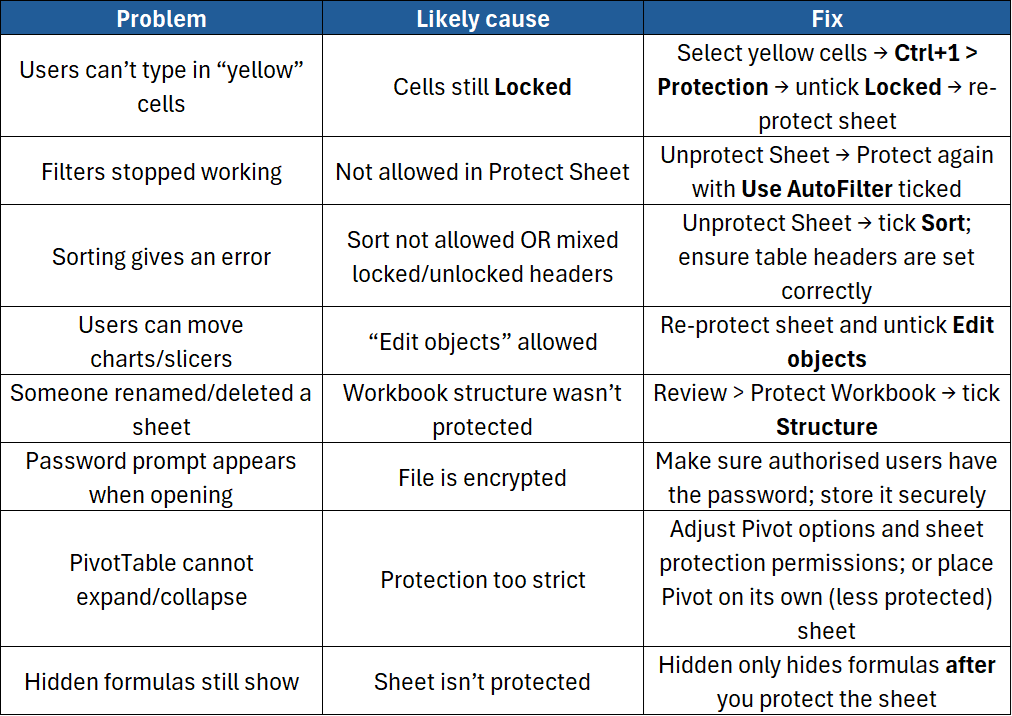
Step 14 — Troubleshooting guide
Step 15 — Best-practice checklist
- ✅ Encrypt confidential files when you need a password before opening them.
- ✅ Protect workbook structure to stop worksheet insertion, deletion, renaming, moving and hiding/unhiding.
- ✅ Unlock input cells first, then protect the worksheet.
- ✅ Use Allow Users to Edit Ranges for controlled shared input areas.
- ✅ Use Hidden + Locked for formulas you do not want displayed in the Formula Bar.
- ✅ Keep inputs, calculations and reports clearly separated where practical.
- ✅ Enable only the protected-sheet actions users genuinely need.
- ✅ Use consistent visual cues for editable cells.
- ✅ Maintain a version log for important workbooks.
- ✅ Remember: worksheet protection controls editing; file encryption protects access.
Conclusion
Excel gives you several different ways to protect a spreadsheet. Protect Sheet controls what users can change on a worksheet, Protect Workbook locks the workbook structure, and Encrypt with Password restricts who can open the file. Used together, these features can reduce accidental changes while keeping the workbook usable.
Want Hands-On Practice with Excel Protection?
Our Excel Advanced course explicitly covers protecting cells, protecting and unprotecting worksheets, and protecting workbook structure, alongside data validation, formula auditing, advanced functions, macros and PivotTables.
Not sure whether Advanced is the right level? Take our free Excel Skills Assessment, or compare the full Excel training pathway.
Want hands-on practice with Excel protection? Our Excel Advanced course covers protecting cells, worksheets and workbook structure. Or compare the full Excel training pathway.
Need a quick explanation of a Power BI term, feature or concept?
Browse our free Power BI GlossaryFound this guide useful? Add ExperTrain as a Preferred Source on Google to help surface more of our training guides, articles and learning resources.


.png)
