


How to Transform Columns in Power Query
.svg)

Introduction
Most data problems in Excel come down to one thing: columns are messy.
You might receive a “Full Name” column that needs splitting into First Name and Last Name. Or an “Address” column where the postcode is stuck at the end. Or a product code where the first three characters mean category, but the rest is a unique ID. You might also see inconsistent text like “uk”, “UK ”, and “United Kingdom” in the same column.
Power Query is perfect for fixing these issues. It lets you transform columns using simple clicks, and it remembers every step. Next time you get a new file, you press Refresh and Power Query repeats the transformations automatically.
In this guide you’ll learn the most useful column tools in Power Query:
- Split Column (by delimiter, position, character changes, and more)
- Extract (first/last characters, text between delimiters, before/after, and patterns)
- Replace Values (including careful “whole value” replacements)
- Plus key supporting tools: Trim/Clean, Change Type, Format, Conditional Column, and quick error handling
We’ll keep the language simple but the content detailed so you can follow it step-by-step.
Before you start: how to open Power Query
- Turn your range into an Excel table: click inside the data and press Ctrl + T.
- Go to Data > From Table/Range.
- The Power Query Editor opens.
You’ll see:
- Queries on the left
- Your data preview in the middle
- Applied Steps on the right (every change you make)
A simple example we will tidy up
Imagine you receive a table like this:
Customer= “Smith, John”Order Ref= “UK-2025-000783”Product= “Laptop | 16GB | Silver”Email= “john.smith@company.co.uk ” (note the space at the end)Amount= “£1,250.00” (as text)
These are normal real-world problems. Let’s fix them with column transformations.
Step 1: Always check data types first
Power Query tries to guess data types. Sometimes it gets it wrong, especially with dates, currencies, and IDs.
- Click the icon in the column header (ABC, 123, calendar) and set the right type:
- IDs with leading zeros → Text
- Money fields → Decimal Number
- Dates → Date
- Yes/No → True/False
Tip: If you see an automatic step called Changed Type that breaks things, delete it and set types later once the text is cleaned.
Part 1: Split Column (turn one column into two or more)
What “Split Column” is for
Use Split Column when one field contains multiple pieces of information, like:
- “Last, First”
- “City, County”
- “Product | Size | Colour”
- “INV-2025-00012”
- “john.smith@company.co.uk” (split at @)
You can split by delimiter, by position, or by special rules.
Split by delimiter (comma, space, dash, pipe, etc.)
Example: Split “Smith, John” into Last Name and First Name
- Select the Customer column
- Transform > Split Column > By Delimiter
- Choose delimiter Comma
- Split at: Left-most delimiter (usually correct)
- Click OK
Now you have two columns:
- Customer.1 = “Smith”
- Customer.2 = “ John”
Next, tidy the space:
- Select the new First Name column
- Transform > Format > Trim
Rename the columns to LastName and FirstName (double-click headers).
Split by delimiter that appears many times
Example: Product = “Laptop | 16GB | Silver”
- Select Product
- Split Column > By Delimiter
- Choose delimiter |
- Split at Each occurrence
- Click OK
Now you get three columns. Trim them (pipe splits often leave spaces):
- Select all three columns → Transform > Format > Trim
Split by number of characters (fixed width)
Example: Code = “ABC000783”
- First 3 letters = category
- Remaining digits = ID
- Select Code
- Transform > Split Column > By Number of Characters
- Enter 3
- Choose Once, as far left as possible
You get:
- Code.1 = “ABC”
- Code.2 = “000783”
This is great for structured codes.
Split by positions (advanced but useful)
If your text is consistent but not truly “fixed width”, you can split based on positions. You can do this using:
- Extract options (covered below), or
- A custom column with
Text.Start,Text.Middle,Text.End
Example (simple custom extraction):
- Category = first 3 characters
- ID = last 6 characters
Split by digit-to-non-digit or letter-to-digit changes
Sometimes data looks like:
- “AB12345”
- “Part9A”
Power Query has a smart split option:
- Split Column > By Digit to Non-Digit
- Split Column > By Non-Digit to Digit
This helps when codes mix letters and numbers in predictable patterns.
Split into rows (not columns)
Example: One cell contains:
- “Red;Blue;Green”
If you want one colour per row:
- Split Column > By Delimiter
- Choose delimiter “;”
- In “Advanced options” choose Split into Rows
- OK
Part 2: Extract (pull out the part you need)
Extract is ideal when you don’t want to split a column into multiple parts. You just want one piece.
Extract text before or after a delimiter
Example: Email domain from “john.smith@company.co.uk”
- Select Email
- Transform > Extract > Text After Delimiter
- Delimiter: @
- OK
Result: “company.co.uk”
Or extract the username:
- Text Before Delimiter “@” → “john.smith”
Extract text between delimiters
Example: Order Ref “UK-2025-000783”
If you want the year “2025”:
- Select Order Ref
- Transform > Extract > Text Between Delimiters
- Start delimiter: -
- End delimiter: -
- OK
This works well when the pattern is consistent.
Extract first or last characters
Example: Keep last 6 digits of an ID
- Select the column
- Transform > Extract > Last Characters
- Enter 6
For the first 2 characters:
- Extract > First Characters > 2
Extract range (start position + number of characters)
This is useful if you know the position where something starts.
Example: A code “INV-2025-000783”
- start at character 5, take 4 characters → “2025”
Power Query has “Range” under Extract:
- Transform > Extract > Range
- Provide start index and length
(If you prefer not to think in character positions, use “Text Between Delimiters” instead.)
Extract using examples (very powerful)
If your data is messy but follows a pattern, try:
- Add Column > Column From Examples
You type what you want for a few rows, and Power Query guesses a rule.
Example:
- Input: “Smith, John”
- Output example: “John”
Power Query often figures out “text after comma then trim”.
This is one of the best tools for real-world cleaning.
Part 3: Replace (fix inconsistent values fast)
Replace Values (basic)
Example: Replace “United Kingdom” with “UK”
- Select the column
- Transform > Replace Values
- Value to find: “United Kingdom”
- Replace with: “UK”
Great for quick standardisation.
Replace carefully: whole value vs partial matches
If you replace “UK” with “United Kingdom”, you might accidentally change:
- “UK-2025-001” (bad)
So be careful. If you need to replace only whole values:
- Use filters and replace only on that specific column where it makes sense
- Or use a conditional column:
- If Country = “UK” then “United Kingdom” else Country
Replace nulls (missing values)
If blanks mean “Unknown”:
- Transform > Replace Values
- Value to find:
null(Power Query shows nulls in a special way)
Or use:
- Transform > Fill > Down (covered next)
Supporting tools that make Split/Extract/Replace work better
Trim and Clean (use these constantly)
- Trim removes extra spaces at the start/end
- Clean removes non-printing characters
Find them under Transform > Format
For text columns, Trim is often step one.
Fill Down and Fill Up
If you have a file where a category appears once then blanks below:
- Select the column
- Transform > Fill > Down
This copies the last known value into blanks. Very useful for reports exported from systems.
Remove duplicates (after cleaning keys)
Once your IDs are trimmed and typed correctly, you can:
- Select the key column → Home > Remove Rows > Remove Duplicates
This is common before merges.
Replace errors
If a conversion fails, Power Query can create errors. You can:
- Transform > Replace Errors (set to null or 0)
- Filter to show Error rows and investigate
Conditional Column (simple IF logic)
Example: Standardise priority:
- If text contains “High” then “High”
- else if contains “Med” then “Medium”
- else “Low”
Use Add Column > Conditional Column.
Custom Column (light M code you can copy)
Remove all spaces from a code:
= Text.Replace([Code], " ", "")
Extract text after the last dash:
= Text.AfterDelimiter([OrderRef], "-", {0, RelativePosition.FromEnd})
Safer split when delimiter might be missing:
= try Text.AfterDelimiter([Email], "@") otherwise null
You don’t need to memorise these, but they’re handy.
A full “real-life” cleaning workflow (example)
Let’s tidy our example fields:
- Email: Trim (remove trailing spaces)
- Customer: Split by comma → Trim → rename columns
- Order Ref: Extract year between delimiters
- Product: Split by “|” into Product, Spec, Colour
- Amount: Remove currency symbol and convert to number
- Replace “£” with nothing
- Replace “,” with nothing (if needed)
- Change type to Decimal
- Rename steps and columns clearly
- Close & Load
Now, when new data arrives, you refresh and everything repeats.
Common problems and how to fix them
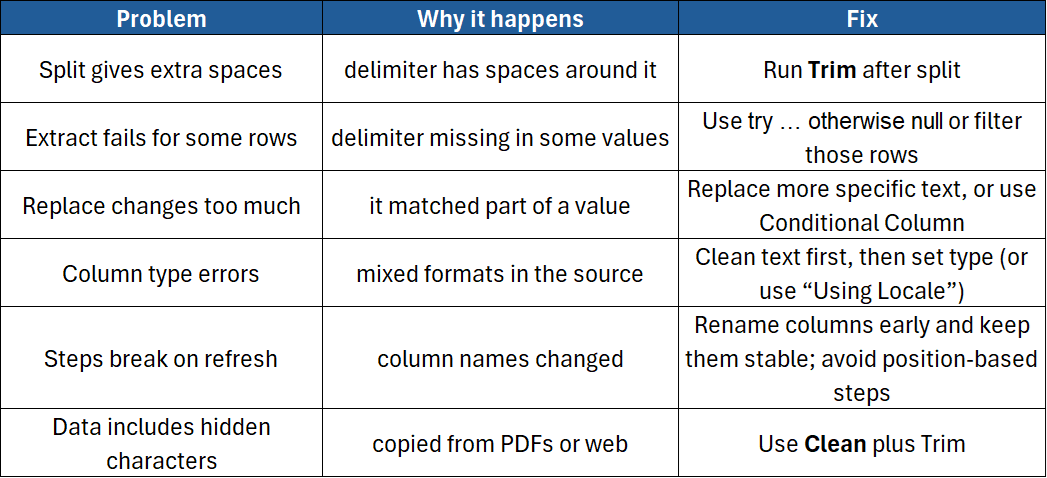
Best practices (quick checklist)
- Clean keys first: Trim + Clean + correct type
- Split only when you truly need multiple columns
- Extract when you only need one part
- Use Column From Examples for messy real-world patterns
- Rename columns and steps so the query is easy to maintain
- Handle missing delimiters with
try … otherwise - Remove unused columns early for better performance
- Refresh and test after major changes
Conclusion
Power Query makes column clean-up far easier than manual Excel editing. With Split, Extract, and Replace, you can turn messy text into tidy, analysis-ready columns in a repeatable way. The big advantage is that you only do the hard work once. After that, you simply click Refresh whenever new data arrives.
If you’d like hands-on guidance with real datasets and proven techniques, these courses will help:
- Excel Introduction – Excel foundations and clean data habits
- Excel Intermediate – Power Query basics, text cleaning, and shaping tables
- Excel Advanced – Unpivot, grouping, merges, folder combines, and robust workflows
- Excel Advanced Functions and Data Modelling – repeatable data pipelines and modelling patterns
- Excel Power Query – deep dive into query design, transformation techniques, troubleshooting, and best practice
Need a quick explanation of a Power BI term, feature or concept?
Browse our free Power BI GlossaryFound this guide useful? Add ExperTrain as a Preferred Source on Google to help surface more of our training guides, articles and learning resources.


.png)
