


How to Use Macros in Excel
.svg)

Introduction
If you repeat the same steps in Excel every day, a macro can do them for you. A macro is a small script that tells Excel which clicks and keystrokes to perform. You can create simple macros by recording your steps, or write and edit code using VBA (Visual Basic for Applications). Macros can clean data, build reports, format sheets, copy files, and more, all in seconds.
This guide shows you how to record your first macro, save it properly, edit it in VBA, add buttons and shortcuts, handle errors, and keep things safe. You do not need to be a programmer. If you can follow a recipe, you can build useful macros.
What a macro can do
- Repeat formatting: headers, column widths, number formats
- Build reports: copy data, insert formulas, make charts
- Clean data: remove blanks, trim spaces, split columns
- Move data: open files, copy ranges, paste values, save with a new name
- Interact with users: input boxes, notifications, simple menus
A macro is best when the steps are consistent and the task is repetitive.
Before you start: show the Developer tab
- Go to File > Options > Customise Ribbon.
- Tick Developer and click OK.
- You will now see the Developer tab along the top.
The Developer tab has the Record Macro button and the Visual Basic editor.
Record your first macro
The macro recorder captures actions exactly as you do them. It is perfect for formatting and simple tasks.
- Open a practice workbook.
- On Developer, click Record Macro.
- Name it
FormatReport(no spaces). - Store in:
- This Workbook if you only need the macro here
- Personal Macro Workbook if you will reuse it in any workbook on this PC
- Add a short description.
- Click OK. Excel is now recording.
Do a simple routine, for example:
- Select row 1 and make it bold, set fill colour.
- Turn on Wrap Text for row 1.
- Auto fit columns A to F.
- Apply Comma format to numeric columns.
- Add a table style to your data.
When done, click Developer > Stop Recording.
Run it: press Alt+F8, choose FormatReport, click **Run`. Your steps replay.
Tip: The recorder does not capture everything. It records menu clicks and many formatting actions, but not every dialog. For complex logic you will edit the macro in VBA.
Relative vs absolute recording
By default, Excel records exact cell addresses, like Range("B2").Select. If you want a macro that works relative to the active cell (for example, format “the current column” no matter which column that is), turn on Use Relative References before recording.
- Absolute: always formats B2 to F50
- Relative: formats the cells next to the current selection
Use relative recording for flexible routines. Use absolute recording for fixed report layouts.
Where macros live and how to save them
- This Workbook: Saves the macro inside the current file.
- Personal Macro Workbook: A hidden workbook named
PERSONAL.XLSBthat loads when Excel starts. Good for macros you use across files. - New Workbook: Places the macro in a new file.
If your file contains macros, save it as .xlsm (macro enabled) or .xlsb (binary). If you save as .xlsx, macros are removed.
Open the VBA editor and meet your code
Press Alt+F11 to open the VBA editor. On the left is the Project pane. You will see:
- VBAProject (YourWorkbook.xlsm)
- Microsoft Excel Objects (sheets and ThisWorkbook)
- Modules (this is where recorded macros go, usually Module1)
Double-click Module1. You should see code like:
Sub FormatReport()
    Rows("1:1").Font.Bold = True
    Rows("1:1").WrapText = True
    Columns("A:F").EntireColumn.AutoFit
    Range("A2:F100").NumberFormat = "_(* #,##0_);_(* (#,##0);_(* ""-""_);_(@_)"
End Sub
Do not worry if yours looks different. The recorder creates very literal code. You can tidy it to make it clearer.
Edit a recorded macro to make it better
Recorded macros select lots of cells. Most of the time you do not need to select anything. You can write:
Range("A1").Font.Bold = True
instead of:
Range("A1").Select
Selection.Font.Bold = True
Here is a tidy version of a common formatting routine:
Sub CleanFormat()
    With Rows(1)
        .Font.Bold = True
        .WrapText = True
        .Interior.Color = RGB(242, 242, 242) 'light grey
    End With

    With Range("A1").CurrentRegion
        .Columns.AutoFit
        .Rows.RowHeight = 18
    End With
End Sub
CurrentRegion expands from the active cell to cover the whole block of data. It is handy for tables that grow or shrink.
Write a simple macro from scratch
You can create a macro without recording. This example cleans text by trimming spaces and fixing case in column A.
Sub CleanNames()
    Dim c As Range
    For Each c In Range("A2", Cells(Rows.Count, "A").End(xlUp))
        c.Value = WorksheetFunction.Proper(WorksheetFunction.Trim(c.Value))
    Next c
    MsgBox "Names cleaned", vbInformation
End Sub
What it does:
- Finds the last used cell in column A
- Loops through each name
- Trims extra spaces and applies Proper Case
- Shows a message when finished
Add a button or a shortcut to run your macro
Quick Access Toolbar (QAT)
- Click the small down arrow on the QAT and choose More Commands.
- From Choose commands from, pick Macros.
- Add your macro and select a nice icon.
- Click OK. One click runs your macro.
Ribbon button
Use File > Options > Customise Ribbon to add a custom group on the Home tab and place your macro there.
Keyboard shortcut
When recording you can assign a shortcut like Ctrl+Shift+M. You can also set or change it later: Developer > Macros > Options.
Build a useful daily macro: refresh, format, save with date
This script refreshes all queries and pivots, formats a table, and saves a dated copy.
Sub DailyReport()
    Application.ScreenUpdating = False
    Application.DisplayAlerts = False

    'Refresh queries and pivots
    ThisWorkbook.RefreshAll
    DoEvents
    Application.CalculateUntilAsyncQueriesDone

    'Format header row
    With Rows(1)
        .Font.Bold = True
        .Interior.Color = RGB(217, 225, 242)
        .RowHeight = 20
    End With

    'Auto fit data block
    On Error Resume Next
    Range("A1").CurrentRegion.Columns.AutoFit
    On Error GoTo 0

    'Save a dated copy
    Dim p As String, nm As String
    p = ThisWorkbook.Path & Application.PathSeparator
    nm = "Sales_Report_" & Format(Date, "yyyy-mm-dd") & ".xlsx"
    ThisWorkbook.SaveCopyAs p & nm

    Application.DisplayAlerts = True
    Application.ScreenUpdating = True
    MsgBox "Report refreshed and saved as " & nm, vbInformation
End Sub
You can adapt this to your own report folder and file name.
Personal Macro Workbook (PMW): your toolbox of favourites
The Personal Macro Workbook (PERSONAL.XLSB) opens hidden each time Excel starts. Store common tools here, such as:
- Clear all filters
- Make print settings (margins, headers, orientation)
- Toggle gridlines or freeze panes
- Standard table styling
To create the PMW, record a macro and choose Store macro in: Personal Macro Workbook. When you finish recording, Excel will create it and place it in your XLSTART folder. Save changes when you exit Excel.
Input boxes and simple prompts
Macros can ask for user input. Here is a small example that gets a date from the user and filters a table.
Sub FilterByDate()
    Dim d As Variant
    d = InputBox("Enter date as dd/mm/yyyy", "Filter")
    If IsDate(d) Then
        With Range("A1").CurrentRegion
            .AutoFilter Field:=3, Criteria1:=CDate(d)
        End With
    Else
        MsgBox "No valid date entered", vbExclamation
    End If
End Sub
Error handling you can copy
Things go wrong. Files are missing, sheets are renamed, or ranges are empty. Use structured error handling to fail safely.
Sub SafeTask()
    On Error GoTo Oops
    Application.ScreenUpdating = False

    'Do work
    Worksheets("Data").Range("A1").CurrentRegion.Copy _
        Destination:=Worksheets("Report").Range("A1")

    Application.ScreenUpdating = True
    MsgBox "Done", vbInformation
    Exit Sub

Oops:
    Application.ScreenUpdating = True
    MsgBox "Something went wrong: " & Err.Description, vbCritical
End Sub
This stops screen flicker, shows a friendly message, and always turns screen updating back on.
Speed up your macros
- Turn off screen updating:
Application.ScreenUpdating = False - Turn off automatic calculation during heavy loops:
Application.Calculation = xlCalculationManual
'...your code...
Application.Calculation = xlCalculationAutomatic
Application.Calculate
- Avoid
.Selectand.Activate - Work with ranges in blocks when possible
- Use
With ... End Withto set multiple properties on the same object - For big tasks, read ranges to arrays, process in memory, then write back
Keep your macros safe
Macro security levels
- Disable all macros: nothing runs
- Disable with notification: preferred for most users. You choose to enable
- Enable only if you trust the source
Set this at File > Options > Trust Center > Trust Center Settings > Macro Settings.
Trusted locations
If you save macro files in a trusted location, Excel will load them without prompts. Use this only for secure folders that IT controls.
Signed macros
Organisations can sign macros with a digital certificate so users can enable only signed code. For personal use, you can create a self-signed cert with SelfCert.exe and sign your projects from Tools > Digital Signature in the VBA editor.
Common sense
- Do not enable macros from unknown sources
- Keep backups of important workbooks
- Store master versions in SharePoint or OneDrive with proper permissions
Good structure for a macro project
- Inputs sheet: unlocked cells for user entry
- Data sheet: raw data or query outputs
- Calc sheet(s): formulas and helper columns, hidden and protected
- Report sheet(s): charts and tables for final output
- Module structure in VBA:
modFormatfor styling routinesmodImportfor data loadingmodExportfor saving and emailingmodMainfor orchestration
Add comments at the top of each macro: purpose, author, date, expected inputs, and outputs.
Common macro tasks you can copy
1) Clear filters and reapply a default sort
Sub ResetView()
    With Range("A1").CurrentRegion
        If .Parent.AutoFilterMode Then .AutoFilter
        .Sort Key1:=.Columns(1), Order1:=xlAscending, Header:=xlYes
    End With
End Sub
2) Convert formulas to values in the current region
Sub FreezeValues()
    With Range("A1").CurrentRegion
        .Value = .Value
    End With
End Sub
3) Export a sheet to PDF in the same folder
Sub ExportPDF()
    Dim p As String, nm As String
    p = ThisWorkbook.Path & Application.PathSeparator
    nm = "Report_" & Format(Now, "yyyymmdd_HHMM") & ".pdf"
    Worksheets("Report").ExportAsFixedFormat Type:=xlTypePDF, Filename:=p & nm
    MsgBox "Saved " & nm, vbInformation
End Sub
4) Loop through files in a folder and combine data
Sub CombineCSV()
    Dim f As String, ws As Worksheet
    Dim p As String: p = ThisWorkbook.Path & "\Imports\"
    Set ws = Worksheets("Data")
    ws.Cells.Clear

    f = Dir(p & "*.csv")
    Do While Len(f) > 0
        With ws.QueryTables.Add(Connection:="TEXT;" & p & f, _
             Destination:=ws.Cells(ws.Rows.Count, 1).End(xlUp).Offset(1, 0))
            .TextFileCommaDelimiter = True
            .Refresh BackgroundQuery:=False
            .Delete
        End With
        f = Dir
    Loop
    MsgBox "All CSV files combined", vbInformation
End Sub
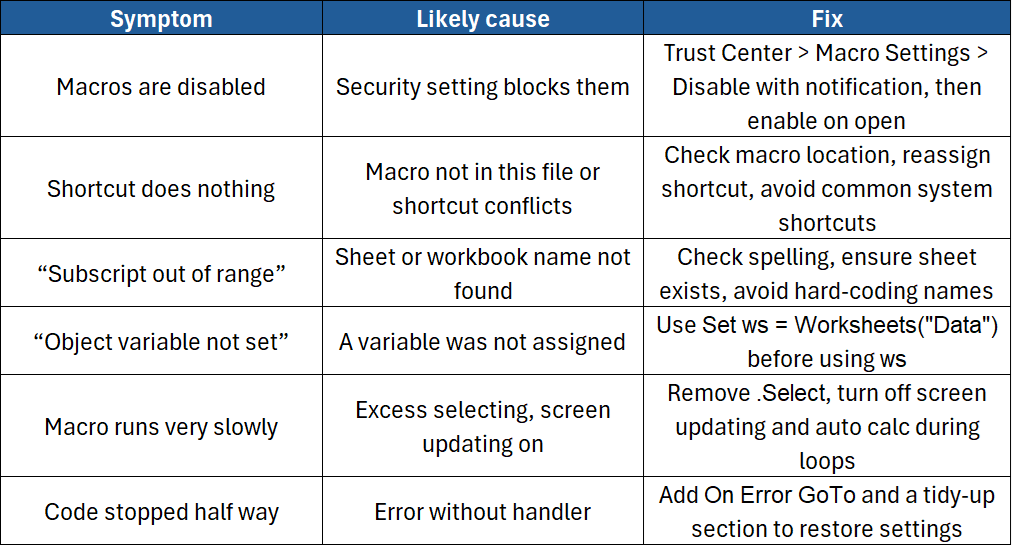
Troubleshooting
Best practice checklist
- Plan the steps on paper first
- Record a first version, then tidy the code
- Use relative references when you need flexibility
- Keep macros in modules with clear names
- Add comments and simple error handling
- Turn off screen updating and auto calc for speed
- Save macro files as .xlsm or .xlsb
- Store reusable tools in your Personal Macro Workbook
- Use trusted locations and only enable macros from people you trust
- Keep a backup and a change log
Conclusion
Macros can save hours each week by turning repetitive steps into a single click. Start with the recorder, then edit the code to make it cleaner and faster. Add buttons, shortcuts, and simple error handling. Keep security in mind and store your macros where you can find them. With a few small scripts, your spreadsheets become faster, safer, and more consistent.
Need a quick explanation of a Power BI term, feature or concept?
Browse our free Power BI GlossaryFound this guide useful? Add ExperTrain as a Preferred Source on Google to help surface more of our training guides, articles and learning resources.


.png)
